


mFAX - Fax from Phone
4.6102.00 Reviews
App Specs
- Version
- 1.2.15
- Updated On
- License
- Free
- Downloads
- 10,000+
- Developer
- octagon lab
- Categories
- Business
- Platform
- Android
Screenshots
 Analysis by AppCompare
When I need to send a fax, the problem is rarely the document itself. The problem is finding a working fax machine, getting the pages in the right order, and dealing with a process that feels stuck in another era. mFAX - Fax from Phone takes a more practical route: it turns an Android phone into a place where I can prepare a document and send it without looking for office equipment.
I reviewed it as a Business app from octagon lab, and its main value is easy to understand. It is not trying to replace every document tool on my phone. Its purpose is narrower and more useful: scan or select a file, prepare it for faxing, and send it when a traditional machine is inconvenient. That focus makes it appealing for occasional business paperwork, especially when I am away from an office.
The app is free to install and is suitable for Everyone. It has reached over 10K installs and holds a 4.6 average from around 900 ratings, with just over 100 written reviews. Those figures suggest a positive reception, although I would still judge it by whether mobile faxing fits my own workflow rather than treating the rating as a guarantee.
Sending a fax from a phone is the whole point
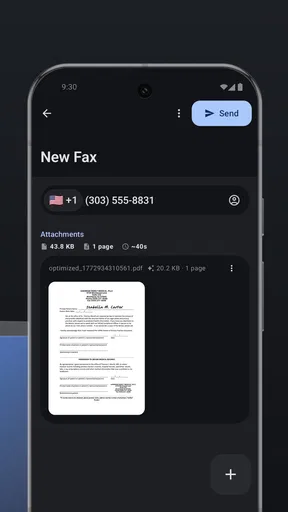
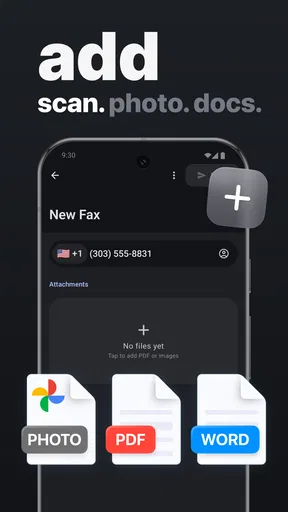
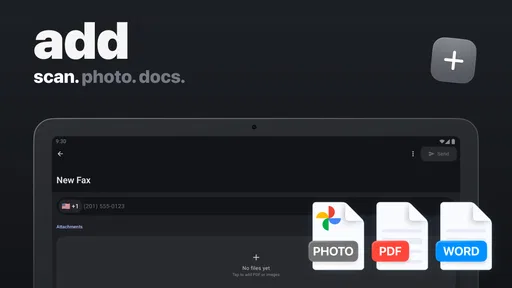
The strongest capability here is the ability to work with common document formats from a phone. The app is designed around scanned pages and files such as PDF, DOC, and JPG, so I can use a document already stored on the device or capture paperwork when I only have a physical copy nearby.
That distinction matters in real life. A fax app is most useful when the document is already digital or when the phone camera can make a readable copy quickly. I do not need to print a PDF just to place it into a fax machine, and I do not need to carry a separate scanner for a short form. The phone becomes the starting point and the sending tool.
I found the benefit less about sending faxes every day and more about removing a specific interruption. If a bank, clinic, insurer, landlord, or office asks for a fax, I can deal with the request from the same device I use to receive the document. That makes the app especially relevant for freelancers, small-business owners, mobile workers, and anyone handling occasional paperwork outside a conventional office.
The app’s store summary emphasizes low rates, but sending a fax is not simply the same as sending an ordinary message. The free installation gets me into the app, while in-app purchases range from $5.99 to $64.99 per item. I would therefore treat mFAX as a convenient paid utility for a specific task, not assume that every fax action is included at no cost. Before sending an important or lengthy document, I would check the purchase screen carefully.
Worth Reading Before You Choose

Flipboard Shows What News Apps Must Do Beyond the Feed

Switching to Android Auto Means Rethinking Your Driving Routine

Google Calendar Makes a Crowded Week Easier to Manage

Ludo King Makes the Most of the Minutes Between Plans

Baby Panda World Brings Quick Play to Modern Phones, but Its Game Library Feels Busy

ESPN’s Live Game View Makes Following Close Games Easier
What the workflow feels like in practice
My preferred workflow starts before opening the app. I first rename the document clearly, remove pages that do not belong, and check that the text is upright and readable. This small preparation step is more important on a phone than it sounds. A fax recipient cannot correct a missing page or a blurry signature after the file has been sent.
For a digital document, selecting the file is the cleanest approach. A PDF usually preserves the page layout better than a hurried camera capture, while a JPG can be useful for a single signed page. A DOC file may be convenient when that is the format I already have, but I would inspect it before transmission because editable documents can behave differently from fixed-layout files.
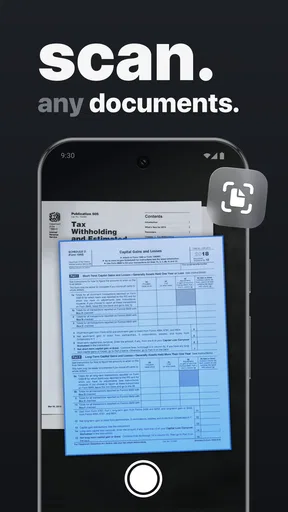
When I only have paper, the phone camera becomes the practical workaround. I would place the page on a flat, contrasting surface, use even lighting, and keep the camera parallel to the paper. Shadows around a fold or glare across a signature can make a page technically complete but difficult for the recipient to use. The ability to send from a phone does not remove the need to create a good source image.
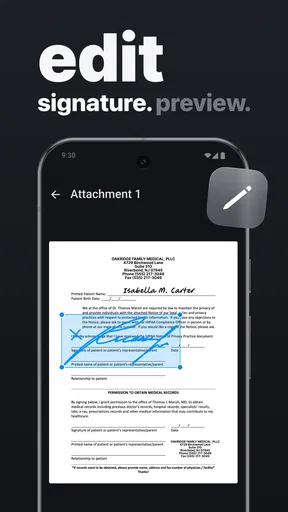
A useful habit is to review every page at a comfortable zoom before committing. I look for cut-off margins, faint text, upside-down pages, and forms where a handwritten field sits too close to the edge. This is one of the less obvious trade-offs of mobile faxing: the convenience is high, but the small screen makes careless checking easy.
I would also keep the recipient’s fax number in a separate note until I have verified it. A fax sent to the wrong number is not made safer by the app being simple to use. For sensitive paperwork, I would confirm the number with the receiving office and keep the original file until I know the transmission has been accepted.
A realistic use case: paperwork during a busy day
Imagine a self-employed contractor who receives a signed authorization form by email while working at a customer’s site. The customer’s office says the form must be faxed before the order can proceed. Driving back to a workspace, printing the attachment, and finding a machine would turn a short administrative task into a much larger delay.
With mFAX, the contractor can save the attachment to the phone, open it, check the pages, enter the destination, and send it from the same location. If the customer has provided a paper form instead, the contractor can capture it with the phone and inspect the image before sending. The real advantage is not that faxing becomes exciting; it is that the interruption stays small.
This scenario also shows where judgment is needed. If the document contains several pages, dense tables, or a signature that must be exceptionally clear, I would spend more time checking the result. If the recipient needs an original embossed page, a color copy, or a physical document for legal reasons, a mobile fax app cannot solve that requirement. It handles transmission, not every kind of document authenticity.
Where it compares well with ordinary alternatives
The usual alternative is a physical fax machine, often located in an office, print shop, or shared workplace. That option can make sense for a company that sends many faxes and already owns the equipment. It may also be preferable when a team needs a fixed process, a larger display, or a dedicated paper feeder for a substantial stack.
For occasional users, though, the machine has obvious friction. I have to locate it, prepare paper copies, and sometimes deal with a queue or a machine that is unavailable. mFAX is more convenient when the document is already on my phone and the job is small enough to review manually.
Email is the other obvious comparison. Email is faster for many ordinary documents and gives me a familiar way to keep a message thread. Yet some organizations still insist on fax for their internal procedures, and an email attachment does not help when the recipient specifically requires a fax transmission. In that situation, mFAX fills a gap rather than competing with email for every document.
Online fax services accessed through a browser can be a better fit for heavier use. A desktop workflow may be easier when documents are stored on a computer, when several people need access, or when an office sends faxes regularly. I would choose the phone app when mobility and immediacy matter more than managing a large document operation.
The trade-off between convenience and control
The main limitation is the same feature that makes the app attractive: everything happens on a phone. A phone is excellent for one or two pages, but it is less comfortable for assembling a long packet, comparing versions, or checking tiny details across many pages. I would not choose this as my primary business document system.
Camera-based scanning introduces another point of friction. A phone can capture a page quickly, but success depends on lighting, focus, positioning, and the condition of the paper. Crumpled forms and pale ink deserve extra attention. If the document is important enough that a recipient might reject an unclear copy, I would use a proper scanner or a carefully prepared digital file instead.
Cost also affects the decision. Because the app is free to install but offers in-app purchases from $5.99 to $64.99 per item, I would not begin a time-sensitive fax without understanding which purchase applies to the job. That is especially important for users who expect a completely free service because the app itself costs nothing to download.
Privacy deserves practical attention as well. I would avoid sending the wrong attachment, review the destination number twice, and delete temporary camera images when I no longer need them. Those are sensible habits for any mobile document workflow, particularly when forms contain personal, financial, or medical information. The app makes transmission more convenient; it does not replace careful handling.
Another trade-off is dependence on the phone at the moment I need to send. A nearly empty battery, poor connectivity, or a document trapped in an incompatible location can turn a quick plan into a delay. My workaround would be to save the final file locally before starting and keep the phone charged when the fax is tied to a deadline.
Small habits that make the app more dependable
My first tip is to create a “send-ready” copy rather than working from the only original. I would preserve the untouched document and make a separate version for faxing. That gives me a chance to remove unnecessary pages, flatten a messy draft, or add a descriptive filename without losing the source.
My second tip is to use page order as a checklist. For a multi-page form, I would write down the expected page count before selecting the file, then compare it with the pages on screen. This catches a surprisingly common mistake: sending the signature page but forgetting the instructions or the page that identifies the account.
My third tip is to treat a photo of a document as a scan, not as a casual snapshot. I would tap to focus on the text, avoid angled shots, and inspect the smallest printed fields. A readable full page is more useful than a beautifully centered image with blurred fine print.
My fourth tip is to separate urgent transmission from long-term storage. I would keep the final document in the phone’s normal file system or another location I trust, rather than assuming the fax app is my archive. That makes it easier to resend the same paperwork through another method if the recipient reports a problem.
Who gets the most value from mFAX?
I think the best audience is someone who faxes occasionally and already does most work on a phone. A freelancer sending a signed agreement, a small retailer dealing with a supplier, a property manager handling a form, or a traveler responding to an office request can all benefit from avoiding a physical machine.
It is also a sensible backup for a small office. Even if the business normally uses a desktop or dedicated fax service, having a mobile option can help when the main setup is unavailable. The value is greatest when the document is short, the destination is known, and the sender needs to act away from the workplace.
I would be more cautious recommending it to a department that sends large batches, needs shared records, or requires a formal approval trail. Those users may be better served by a browser-based business fax platform or established office equipment. Likewise, someone who almost never encounters fax requests may prefer to use a print shop rather than pay for a dedicated mobile utility.
People who dislike checking purchase screens should also pause before installing. The app’s free entry point is convenient, but the available in-app purchase range means the total cost should be part of the decision. I would use it when saving time has a clear value, not because I expect every transmission to be free.
Compatibility, maturity, and everyday usability
mFAX currently lists version 1.2.15 and supports Android 8.0 or later, which keeps it accessible to many older Android phones as well as newer devices. That lower system requirement is helpful for users who keep a reliable older handset instead of upgrading frequently.
The developer behind it is octagon lab. With over 10K installs, the app is not positioned like a massive general-purpose office suite; it is a focused utility with a specific job. I see that as a strength when I want a direct tool, though users expecting a full document-management environment should set their expectations accordingly.
The Everyone content rating makes the app broadly approachable, but that does not mean every fax is appropriate for every situation. The important questions are practical: Is the document clear? Is the recipient number correct? Is mobile transmission acceptable for the organization receiving it? Answering those questions matters more than the age label when the paperwork is sensitive.
My recommendation after using it
I like mFAX because it addresses an annoying, very specific problem without requiring me to keep a fax machine nearby. Its strongest effect is not a long feature list; it is the way it shortens the distance between a document on my phone and a recipient that still expects a fax. For occasional, mobile, small-document tasks, that can be genuinely useful.
I would not present it as a universal replacement for office fax systems. The phone workflow demands careful page checking, camera quality can affect scanned paperwork, and the in-app purchase structure means I would confirm the cost before sending. A desktop service or physical machine remains better for frequent, high-volume, or tightly controlled business processes.
For the right user, however, those limitations are manageable. If I regularly encounter fax requests while away from an office, I would keep this free app available and use it when the convenience justifies the purchase. My bottom line is simple: mFAX is best viewed as a practical emergency and occasional-work tool, not as a complete replacement for a company’s document infrastructure.
Pros
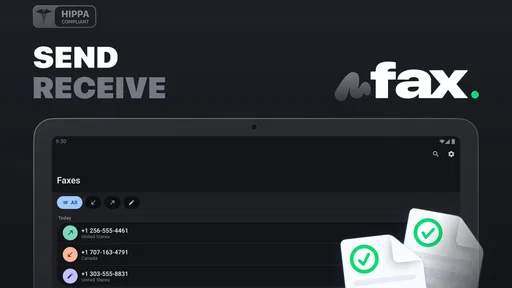
- Send faxes directly from your smartphone without a physical fax machine.
- Supports document scanning with the phone camera for quick preparation.
- Useful for sending paperwork while traveling or working remotely.
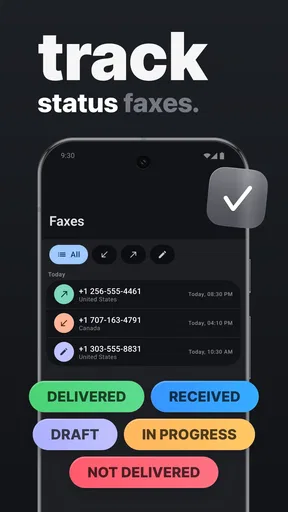
- Can help track fax status and confirm whether a transmission succeeded.
- Digital workflow reduces the need to print documents before faxing.
Cons
- Fax credits or subscriptions may become costly for frequent users.
- Transmission speed depends on your mobile data or Wi-Fi connection.
- Some recipients may require specific fax formatting or cover-page details.
- Scanned pages can be hard to read if lighting or camera focus is poor.
- Sensitive documents are uploaded digitally
- raising privacy concerns for some users.
FAQs for mFAX - Fax from Phone
What is mFAX - Fax from Phone, and how does it work?
mFAX - Fax from Phone is a mobile faxing service that lets you send documents directly from an Android or iOS device. After selecting a file or capturing a document with the phone’s camera, you can enter the recipient’s fax number, review the pages, and submit the fax through the app. An internet connection is required, and availability may depend on your account or region.
Can I send different types of documents with mFAX?
The app is designed for sending common business and personal documents, such as PDFs, scanned pages, images, and files imported from your phone or cloud storage. Before sending an important fax, check the document preview carefully to make sure every page is readable and correctly ordered. File compatibility, page limits, and supported storage services may vary by device and subscription.
Does mFAX - Fax from Phone require payment or a subscription?
Faxing from a mobile device commonly involves credits, per-fax charges, or a subscription, and mFAX may not provide unlimited sending at no cost. The exact price can depend on the destination, number of pages, and selected plan. Review the in-app pricing, trial conditions, renewal terms, and cancellation policy before confirming a purchase or starting a recurring subscription.
How can I know whether my fax was delivered successfully?
After submitting a fax, mFAX generally provides a status indicator or confirmation showing whether the transmission is processing, completed, or unsuccessful. Delivery confirmation should be checked inside the app or through any notification associated with the account. A successful transmission confirms that the fax service accepted the document, but it may not guarantee that the recipient has personally read it.
Is mFAX safe for sending private or sensitive documents?
mFAX can be convenient for sending forms, contracts, medical paperwork, and other documents, but users should still consider the sensitivity of the information being transmitted. Use a secure internet connection, verify the recipient’s fax number, and avoid sending confidential files from a shared device. Read the app’s privacy policy to understand how documents, account details, and transmission data are handled.


